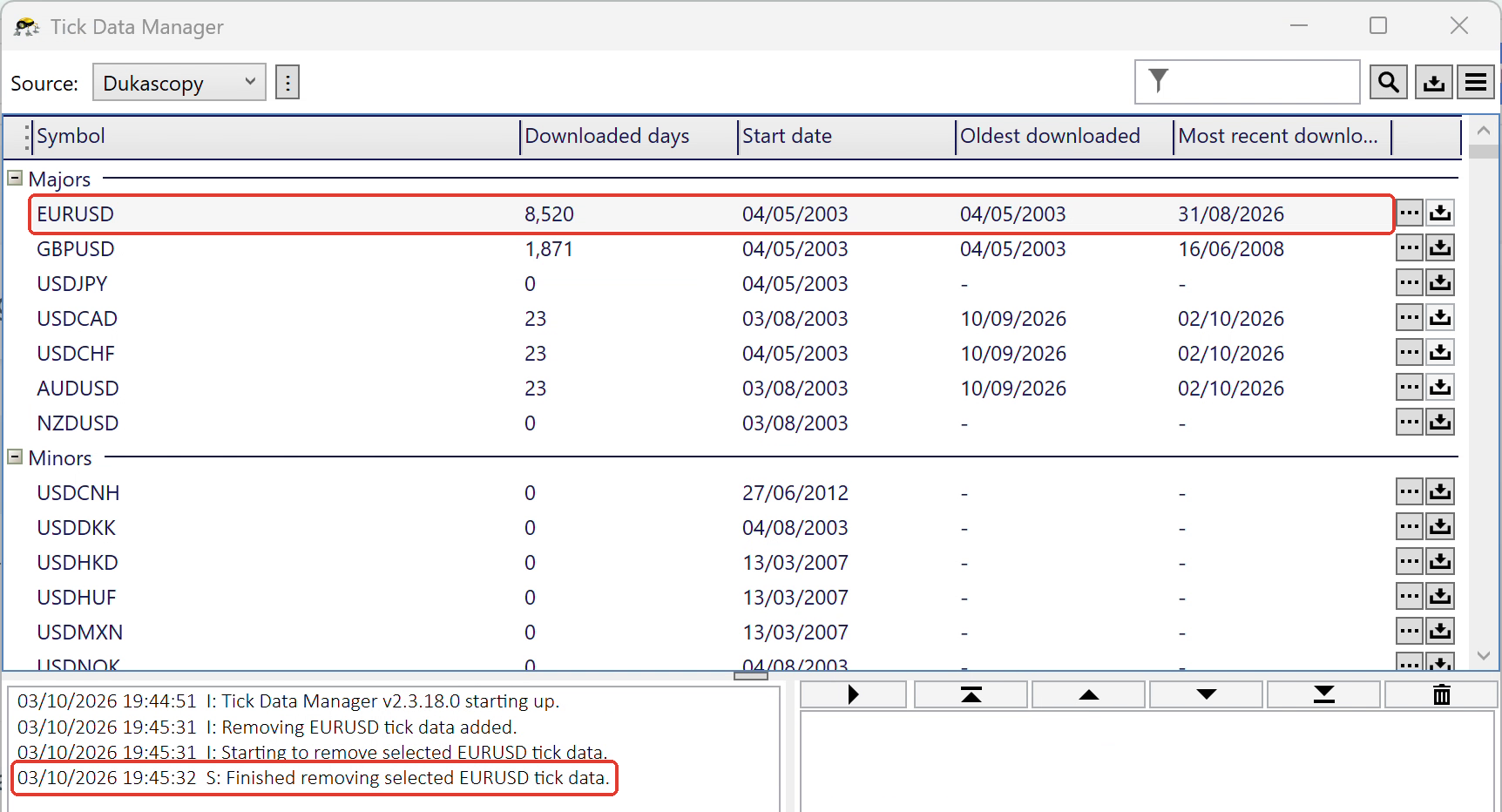
This short step-by-step guide shows how to remove tick data the correct way, in Tick Data Manager. Deleting the files in Windows doesn't work, because Tick Data Manager keeps its own record of what it has downloaded.
Steps
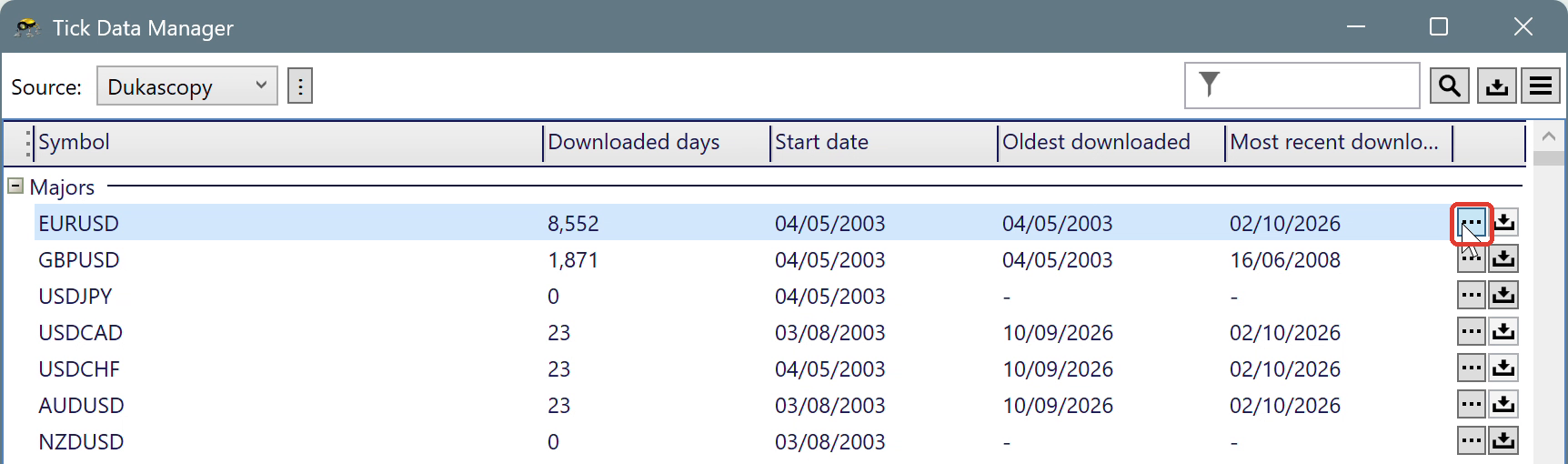
1. Open Tick Data Manager and check that the right data source, for example Dukascopy, is selected in the Source list. Then click the ⋯ button next to the symbol.
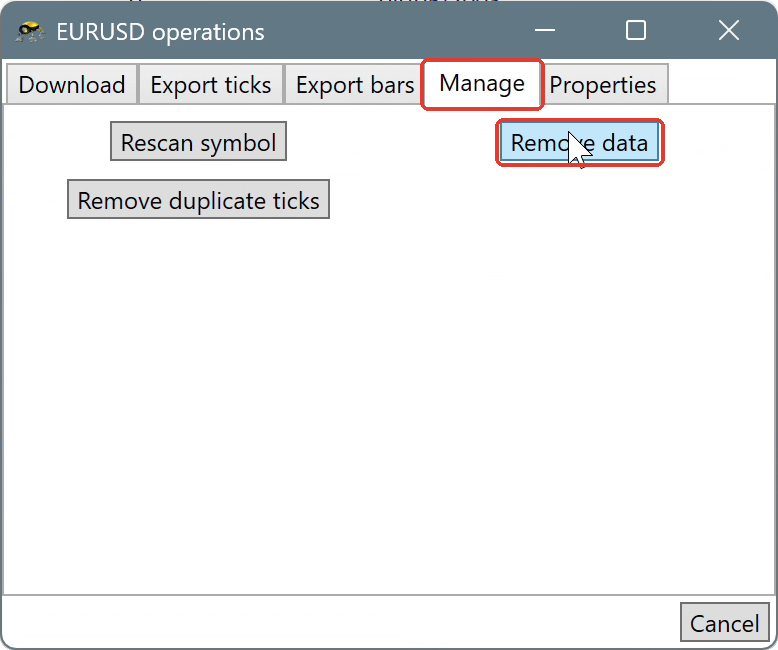
2. In the window that opens, go to the Manage tab and click Remove data.
3. A list of every downloaded day opens, with the oldest day at the top. Scroll to the days you want to remove and select them:
- To select a range of days, click the day at one end of the range, then hold Shift and click the day at the other end.
- To select individual days, hold Ctrl and click each day.
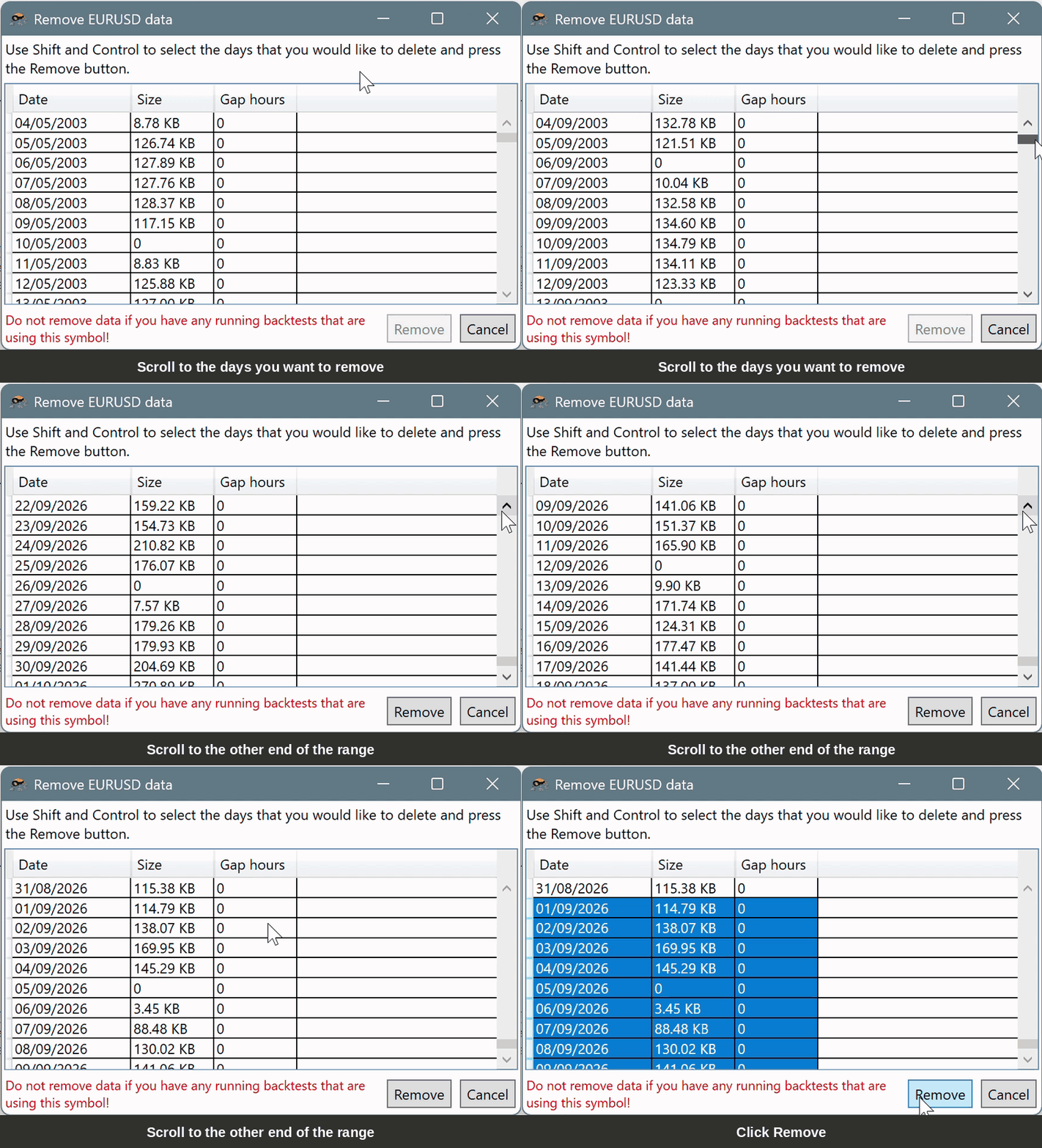
4. Click Remove.
5. Tick Data Manager removes the selected days. When it's done, the log at the bottom shows Finished removing selected tick data for the symbol, and its Downloaded days and Most recent downloaded columns are updated.